
Refine a clip the same way you would brief a videographer. No timelines, no node graphs — just plain-language instructions the renderer interprets correctly.
Upload a Reference Image (Optional)
Text alone works great, but a reference image gives the renderer a head start. Drop a still you want animated and the model will continue the scene from there. Clean PNG or JPG references produce the sharpest output.
Supports PNG, JPG, WebP up to 24MB
Choose Aspect Ratio
Pick the frame for your render. 16:9 for YouTube, 9:16 for TikTok or Shorts, 1:1 for social feeds. Composition adapts to each ratio rather than just cropping.
Chat-Based Video Editing With Omni Flash
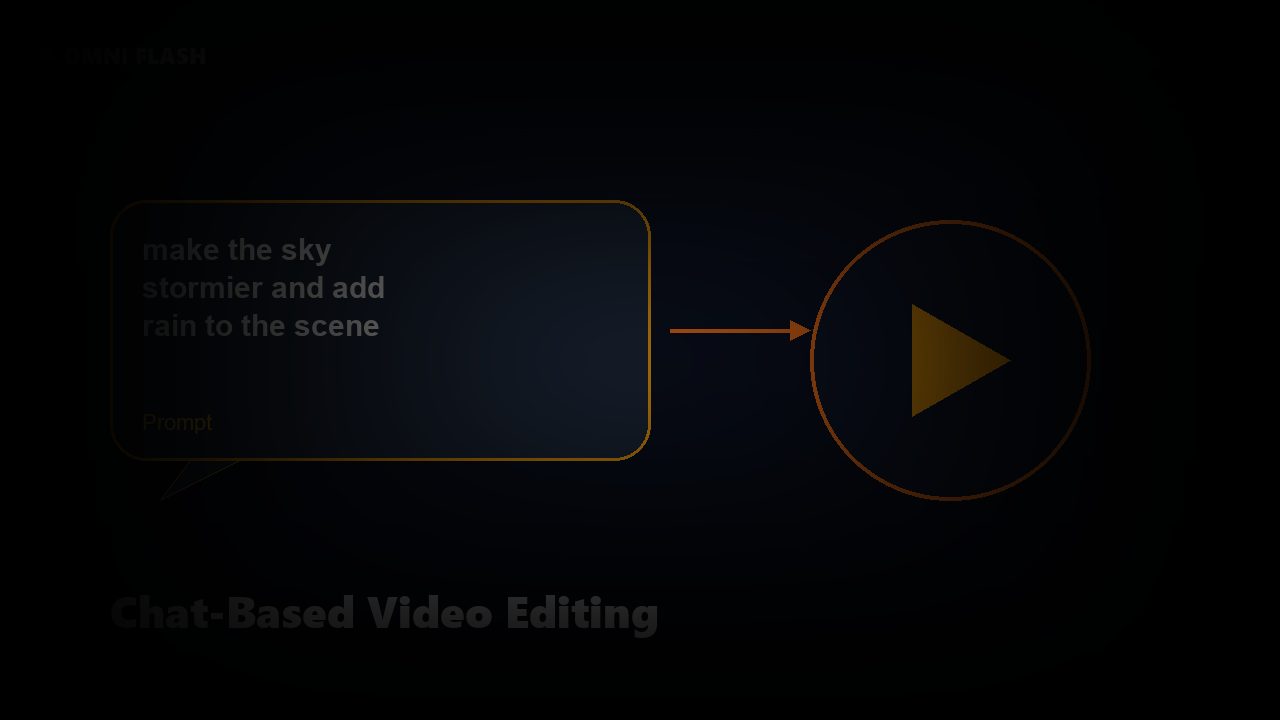
Prompt: "A cinematic shot of cherry blossom petals falling in slow motion, realistic wind, soft golden-hour light." The clip renders in seconds, and you keep refining in chat: "slow the petals a little", "warm up the light". No timeline. No keyframes. Just plain-language instructions the model interprets correctly the first time.
 Chat-based video editing
Remove Watermarks, Swap Objects, Continue Scenes
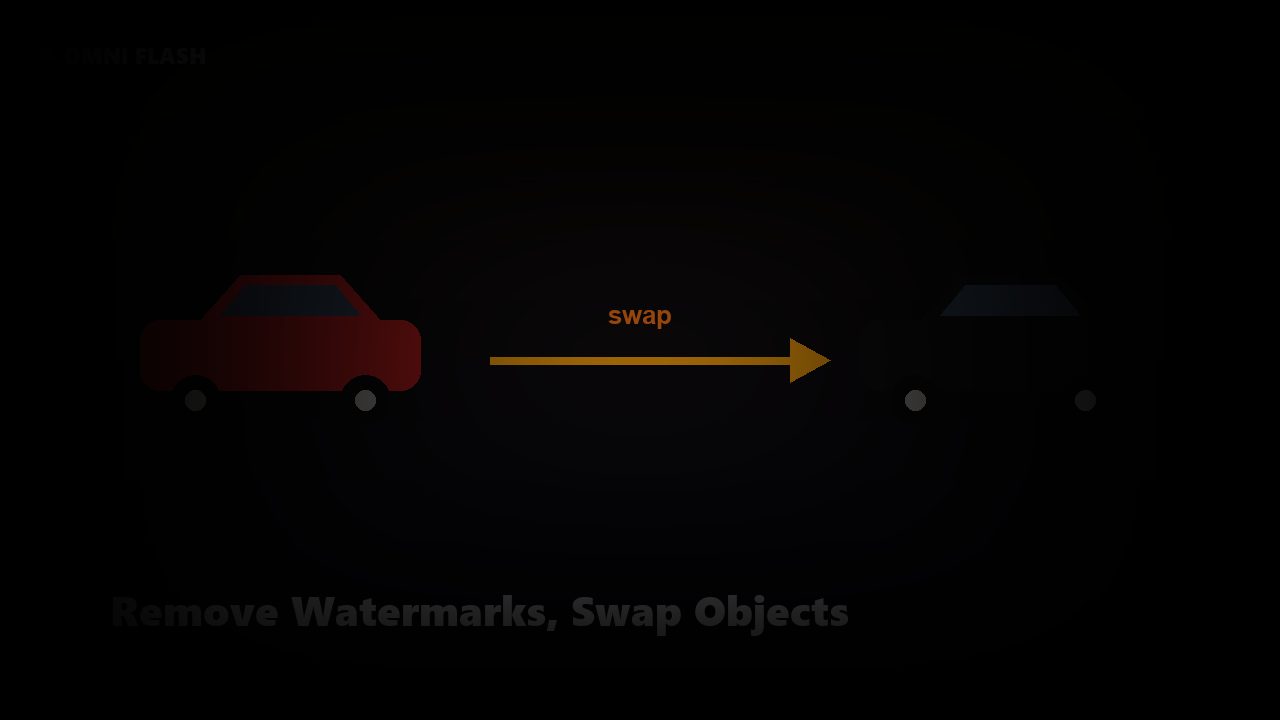
This is the first video model where surgical edits work in plain language. Say "remove the watermark in the lower-right" or "swap the red car for a black one" and only the named region is re-rendered. Earlier video AI tools forced a full regenerate; here everything outside the named region stays pixel-perfect.
 Object swap and watermark removal
Legible On-Screen Text in Every Render
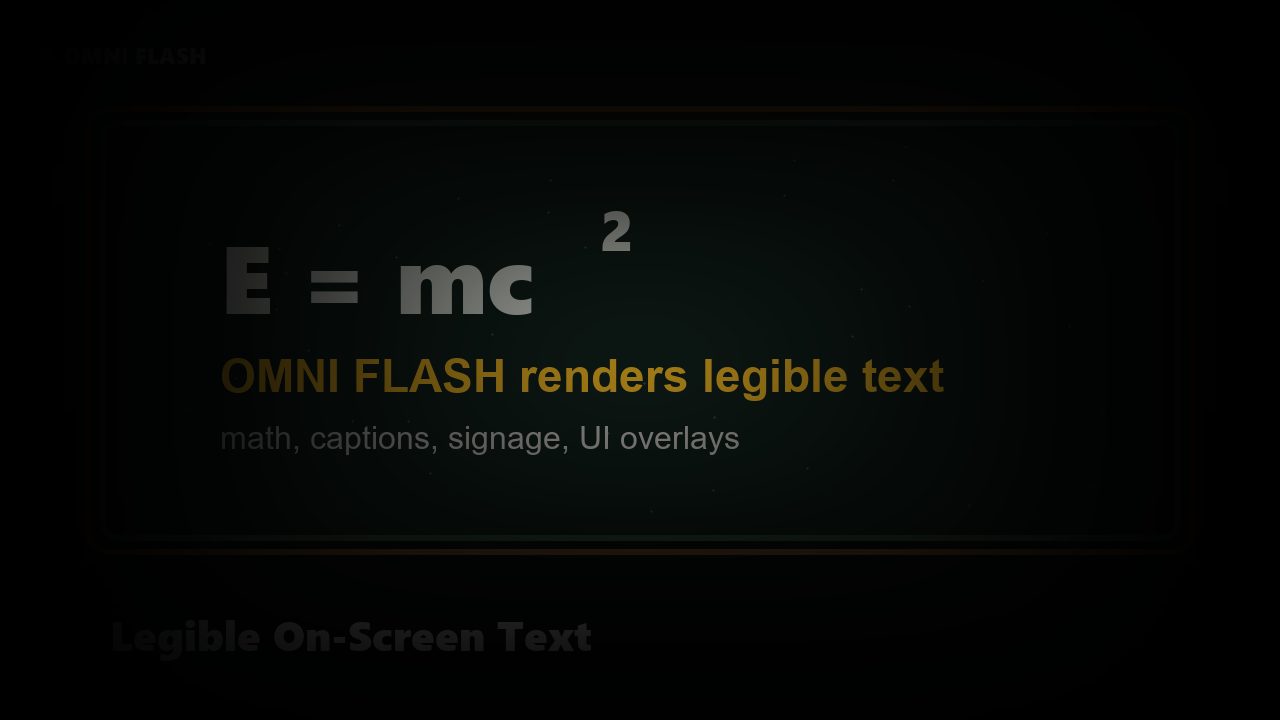
Prompt: "A professor writes the Pythagorean identity sin²θ + cos²θ = 1 on a chalkboard, chalk dust visible." The first viral Omni Flash demo cracked the long-standing video-model problem of unreadable text — equations, signage, captions all render legibly. If your idea relies on words appearing on screen, this is the model that finally does it right.
 Legible on-screen text rendering
Start With a Template, Finish With Omni Flash
A library of starter templates — product demo, music-video cutaway, explainer intro, social-feed loop — that you can fork in one click. Tweak the prompt, swap the reference image, change the aspect ratio. The model takes the rest. Templates are the fastest way to learn what the renderer is actually capable of.
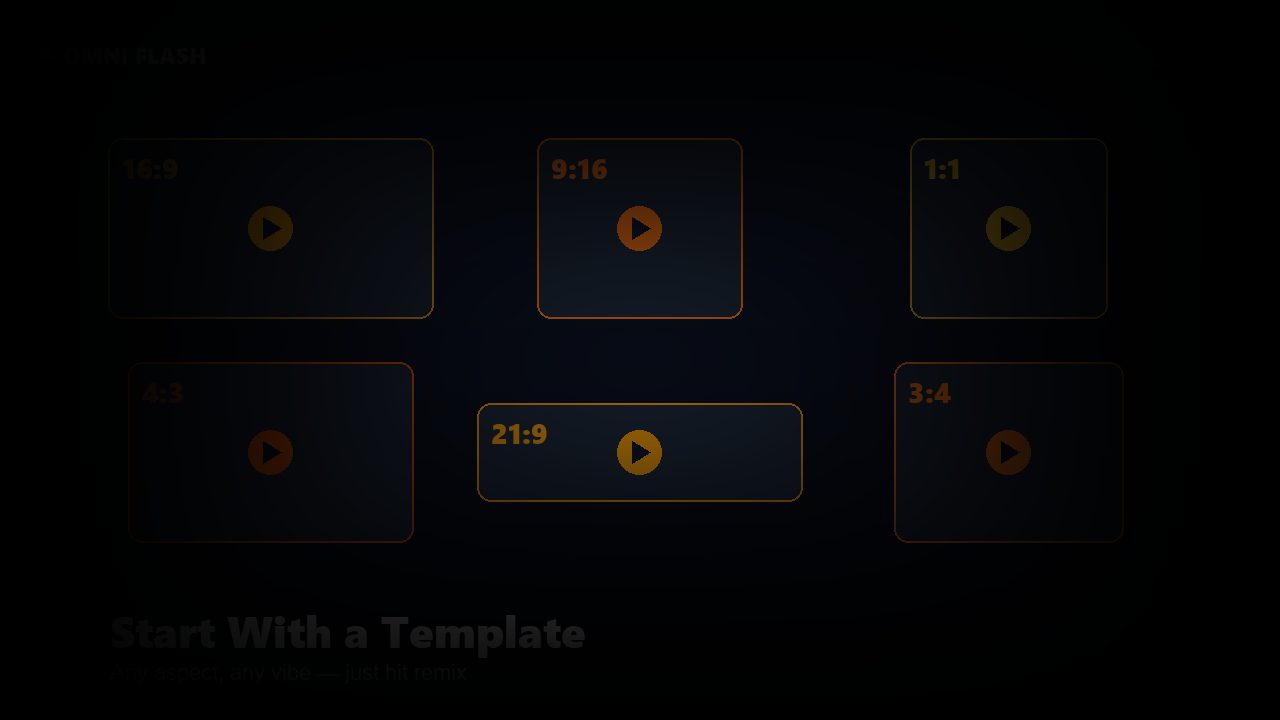 Starter templates
Image to Video, Frame to Motion
Drop a still and the renderer animates it. The model reads the lighting, depth, and subject of the reference image and continues the scene with motion that matches. Great for breathing life into product photos, concept art, storyboard frames — anywhere a static image needs a few seconds of motion to sell the idea.
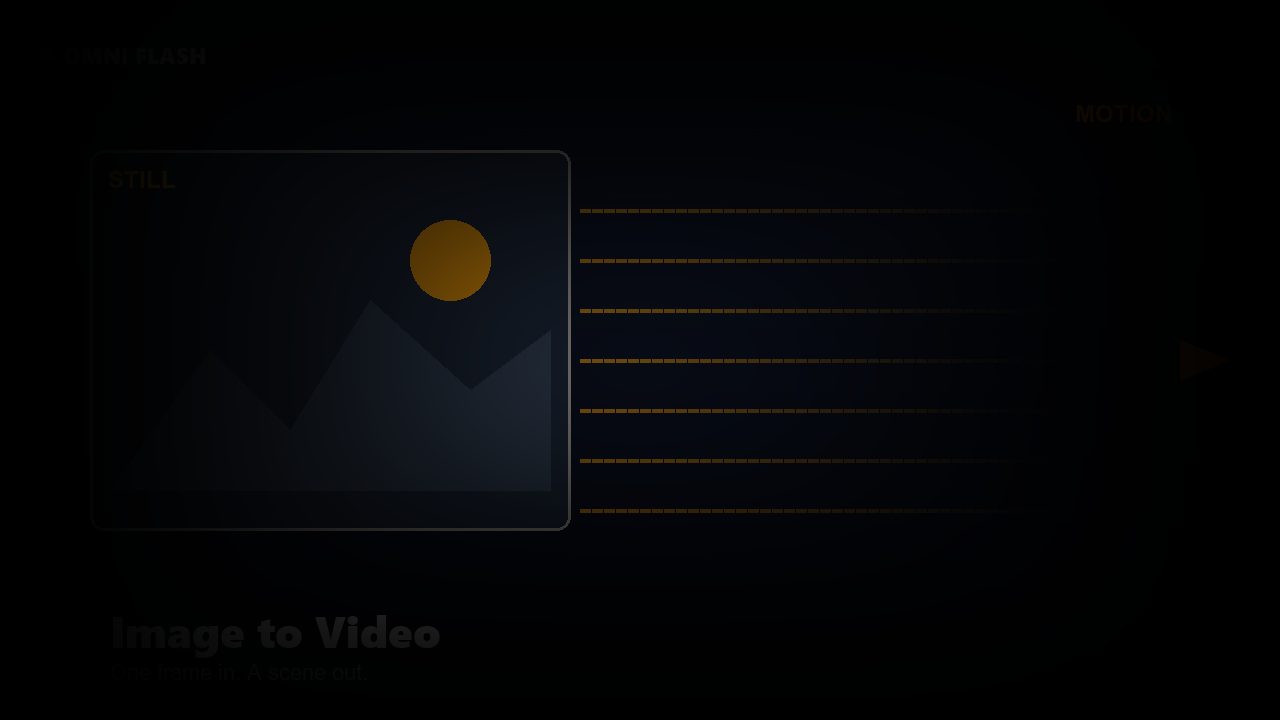 Image-to-video
Fast Tier of the Gemini Omni Family
Omni Flash is the speed-optimized tier of Google's unified Omni model — the same family that powers Omni Pro for cinema-grade renders. Pick this tier when you need to iterate: prompt, see the clip, tweak, see the clip again. Each run is short enough that creative exploration stays cheap. Save Omni Pro for the final master.
 Speed tier vs Omni Pro
Why Creators Choose Omni Flash
The fastest path from idea to rendered video in 2026. Built on Google's Gemini Omni Flash tier, this site brings chat-based editing, legible text, and surgical scene control to anyone with a prompt. Here is what stands out from every prior video AI model.
Omni Flash Plans
Flexible credits and subscriptions. Iterate quickly with monthly plans, lock in 30% off with annual billing, or grab a one-time credit pack.
Starter
$9.9/ month
Try the tool monthly.
Includes:
- 2,950 credits per month
- ~118 renders / month
Creator
$19.9/ month
For frequent video work.
Includes:
- 6,500 credits per month
- ~260 renders / month
Studio
$49.9/ month
Heavy production.
Includes:
- 18,000 credits per month
- ~720 renders / month
Omni Flash FAQ
Common questions about using this tool to generate and edit AI video.
01What is Omni Flash?
Omni Flash is the speed-optimized tier of Google's Gemini Omni model — the unified video-generation system unveiled at Google I/O 2026. It takes a plain-language prompt (or a prompt plus a reference image) and renders a 720p–1080p clip in seconds. Use this tier when you want to iterate quickly; use Omni Pro when you need the highest-fidelity master.
02How is Omni Flash different from Veo, Sora, or Kling?
Earlier video AI models render a clip once and then force you to regenerate from scratch when you want changes. Omni Flash treats editing as a first-class operation: describe the change in chat ("remove the watermark", "swap the red car", "make the dialogue softer") and only the named region is re-rendered. It also handles on-screen text — equations, signage, captions — better than competing video models.
03What kinds of prompts work best?
The renderer rewards specificity. Mention camera moves, lighting, time of day, pace, mood — every clue helps. Plain action statements ("a cat walks") work, but "a tabby cat ambles across a sunlit kitchen tile floor, shallow depth of field, late-afternoon golden hour" gives the model much more to render. Try a template first if you want to see what the tool can do.
04Can Omni Flash edit an existing video?
Yes — that is the headline feature. Drop a clip and describe the change in chat. Everything outside the named region is preserved, and only the part you wanted changed is re-rendered. Use it for watermark removal, object swap, dialogue softening, or scene continuation.
05Is this safe for commercial use?
Clips generated on this site are yours to use commercially under the standard plan terms. Safety filters block disallowed content automatically. Review our terms and privacy policy for full details on commercial use, ownership, and refunds.